How Can We Help?
Customer Order Cancellation for WooCommerce
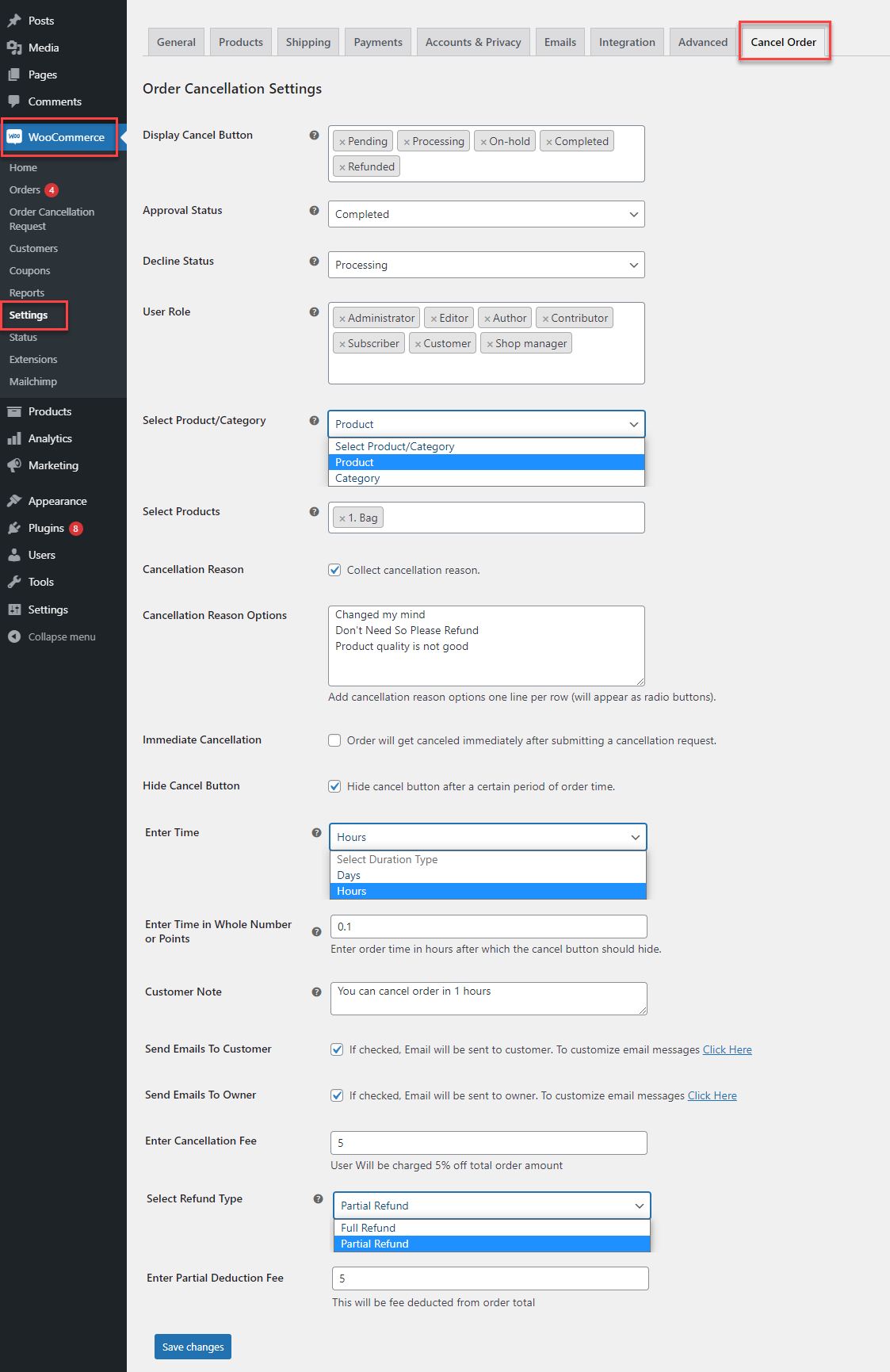
Order Cancellation Settings
- Display Cancel Button: display cancel button for selected order statuses
- Approval Status: set approval status if cancellation request is approved
- Decline Status: set decline status if cancellation request is declined
- User Role: display cancel button for selected user roles
- Select Product/Category: display cancel button for selected products or categories
- Cancellation Reason: enable checkbox to receive cancellation reason
- Cancellation Reason Options: add cancellation reasons one line per row
- Immediate Cancellation: select this option for orders to be cancelled immediately after submitting cancellation request
- Hide Cancel Button: option to hide cancel button after certain period of time
- Enter Time: set time period for when cancel button should be hidden, time starts when order is placed
- Enter Time in Whole Number or Points: set time in whole number or points. For minutes, you needs e.g. 0.5 = 30 minutes
- Customer Note: customer note will appear in cancellation popup
- Send Emails to Customer: select this option to send email to customer
- Send Emails to Owner: select this option to send email to owner
- Enter Cancellation Fee: set cancellation fee in percentage
- Select Refund Type: the order will refunded fully or partially according to selection
- Enter Partial Deduction Fee: partial fee will be deducted from order total in percentage
Order Cancellation Request
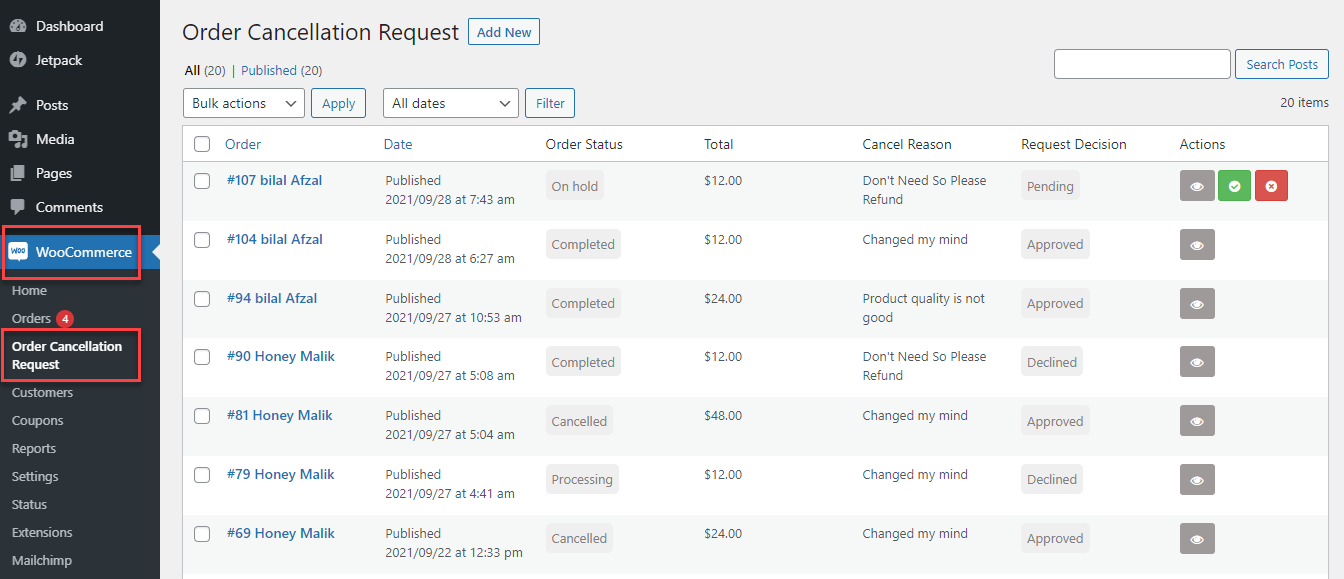
Within the admin panel, go to WooCommerce > Order Cancellation Request. Here, all customer order cancellation requests will be displayed:
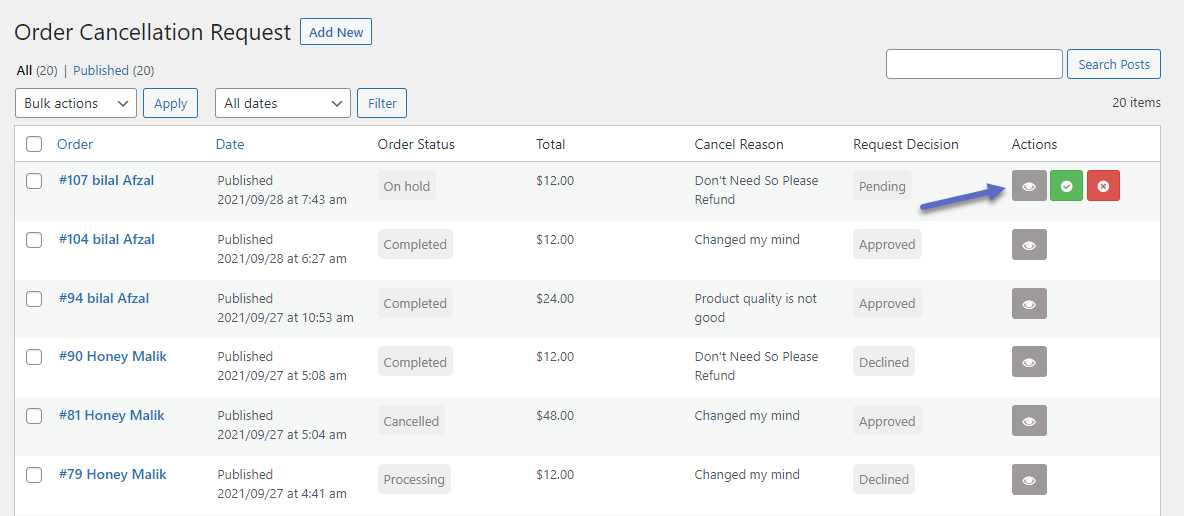
You can also select and view customer order cancellation requests. After viewing, you can Approve or Decline customer cancellation requests.