Edit Footers, Sidebars and other Widgets
What is a Widget?
In WordPress, widgets are blocks of content that you can add to your site’s sidebars, footers, and other areas.
Each widget can add a feature or function to your site, without having to write any code. Common widgets to add to your site are menus, popular post lists, calendars, banner ads, social icons, and more.
Edit footers, sidebars (and other widgets)
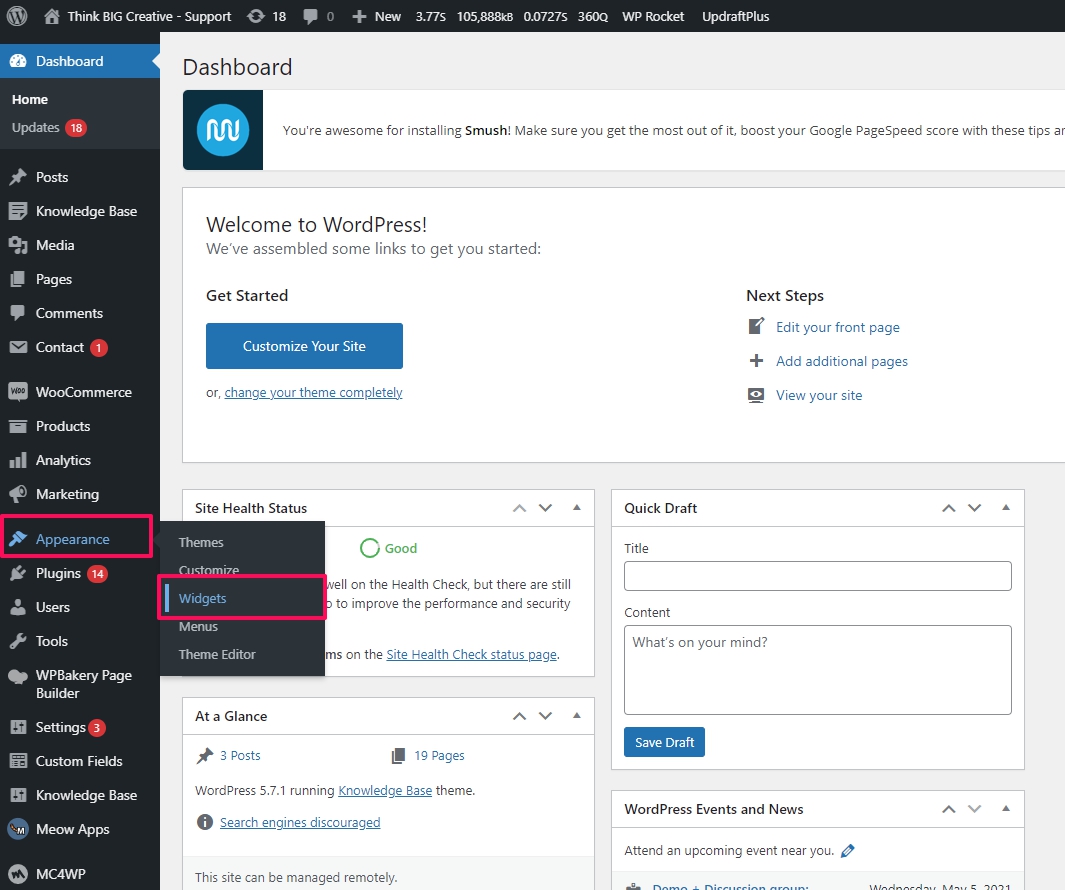
In the left admin menu, click on ‘Appearance’ then ‘Widgets’.
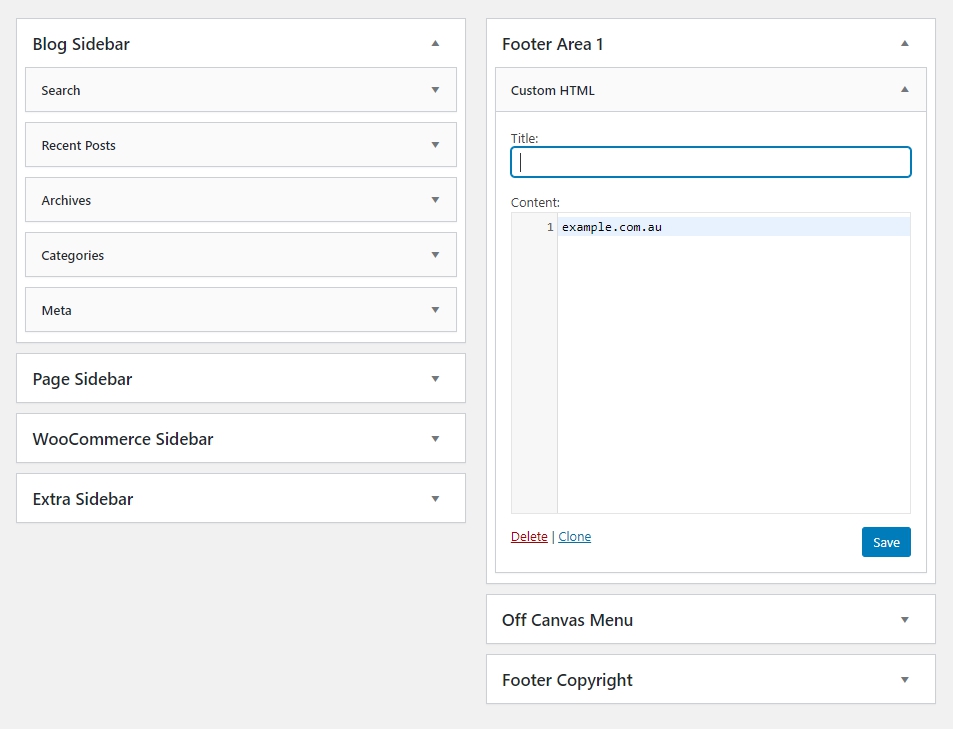
- Click on one of the Widget areas on the right (Example: Footer Area 1)
- All the widgets that appear in this section appear under the title.
- Edit the text box and click ‘Save’ when finished.
Add new widgets
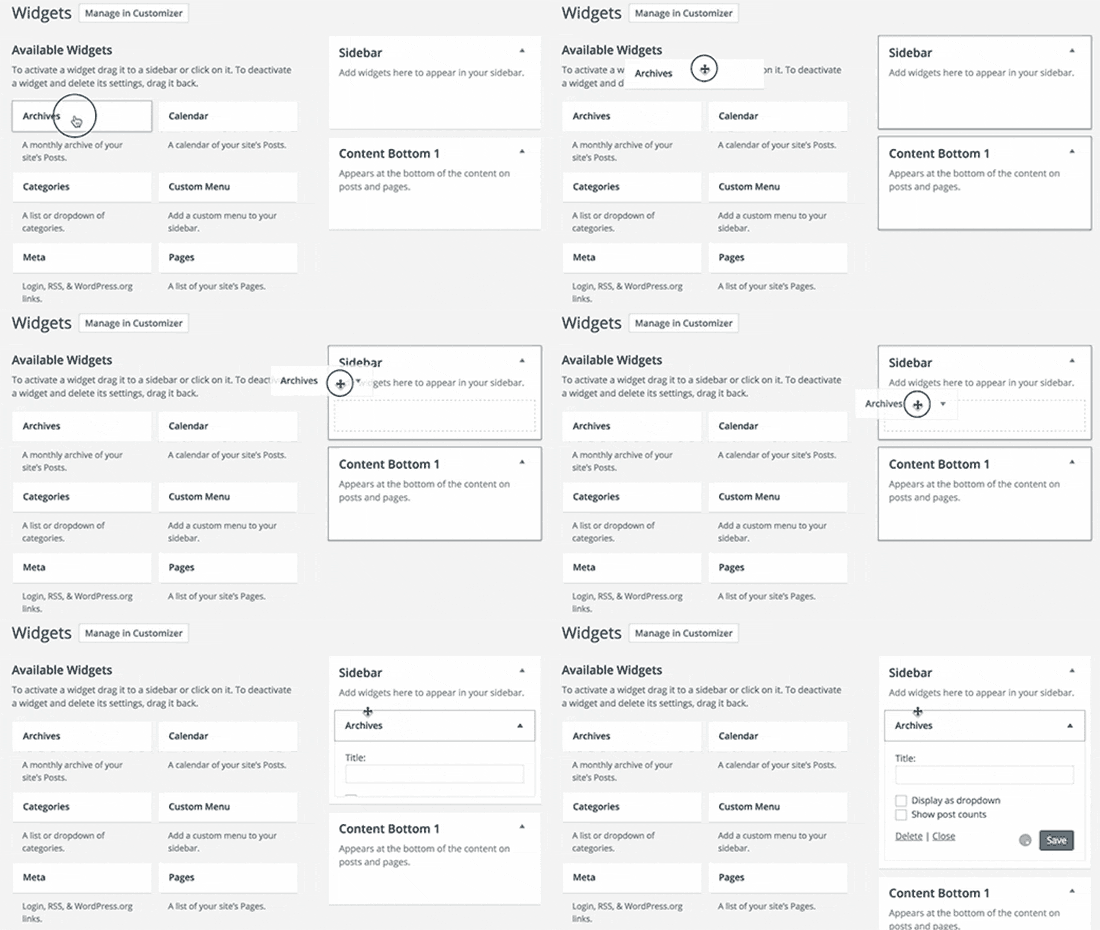
- Different widget types can be found on the left size under ‘Available Widgets’
- Drag and drop the widget required to the widget areas on the right side.
- Edit and adjust settings for the widget and save. Widgets will autosave if a save option is not available
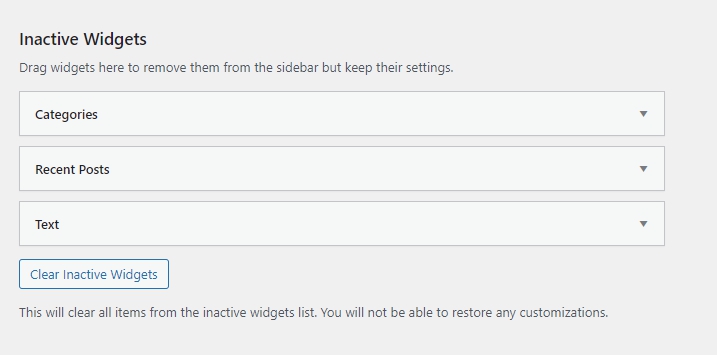
Unpublish widget
This will allow you to republish a widget at a later date without deleting it.
- Ensure that the widget is not open/being edited.
- Drag the widget to the ‘Inactive Widgets’ section in the bottom left.
Delete widget
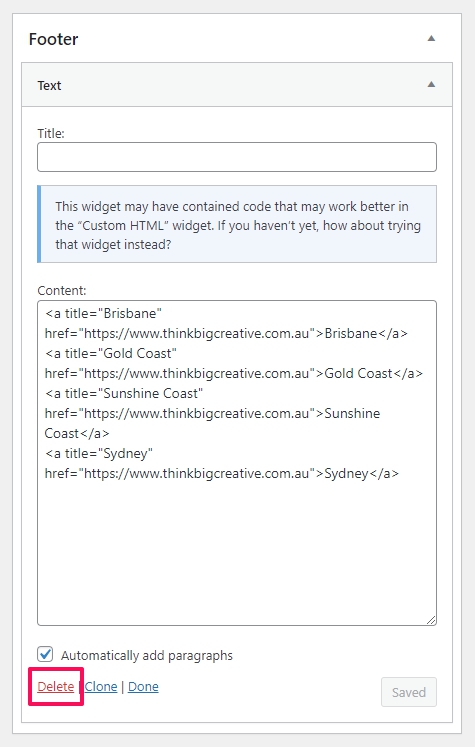
- Open up the widget you want to delete
- click delete in the bottom left
Add a Sidebar
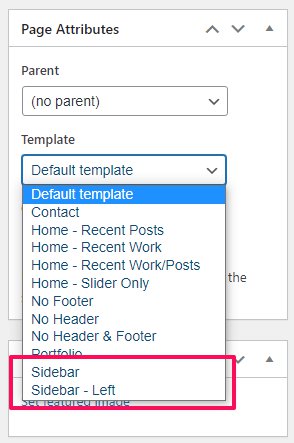
To incorporating a sidebar widget to your page, you will need to adjust the page template before the widget will be visible.
Edit the selected page, by going to Pages > All Pages > Edit.
Along the right hand side, there is a section called Page Attributes, under template, select either Sidebar or Sidebar – Left. Click Update.
Sidebar will place the widgets on the right hand side, where as Sidebar – Left will place them on left hand side.
The sidebar elements can now be edited from Appearance > Widgets.
Footers
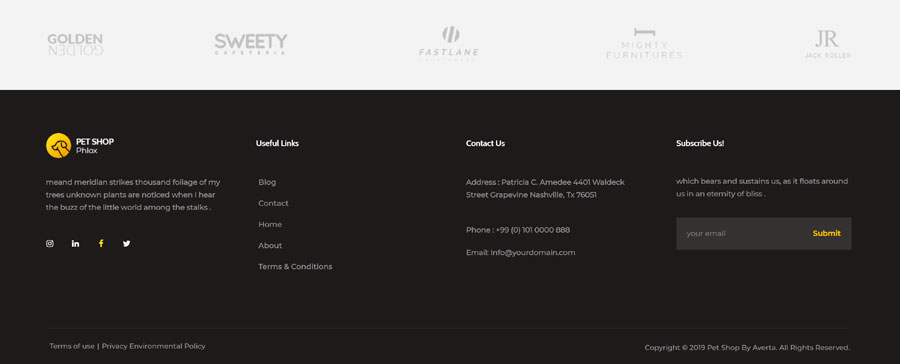
A footer is an area that appears at the bottom of a website after the main body content. Just like a site’s header, the footer also usually appears on every page of a site.
Most sites use their footer area to house important links like disclaimers, privacy policy, and other key pages of your site. You should use your site’s footer to your advantage by highlighting essential links you can’t feature in the header.
The footer also gives you an excellent opportunity to strengthen your brand image and make a long-lasting impression on your visitors. Instead of leaving this space empty or with useless information, you can add your logo to it along with a quick introduction to your brand or a punch line that captures the essence of your business.
The site’s footer is also critical from an SEO perspective. Since it appears on every page of your site, any links in the footer will be considered site-wide links. Never use this space to stuff keywords or internal links to get more page authority. Only feature links that are useful to your audience or legally required.
Footer Example