Edit WordPress Page, Post and Portfolio
Difference between Page, Post and Portfolio
Pages are the default content type used for static content, unlike posts these are not time specific.
Posts are dynamic content. Think of them as articles or updates used in blogs, typically displayed in a reverse chronological order (newest to oldest) you can display them either by publish date or by category.
Portfolios are great for displaying media or showcasing creative work like photography or graphics. While you can use project types or categories to organise them, they are not time specific.
How to Navigate to a Page / Post / Portfolio
After logging in you’ll see the administration dashboard and a left-column menu.
Page
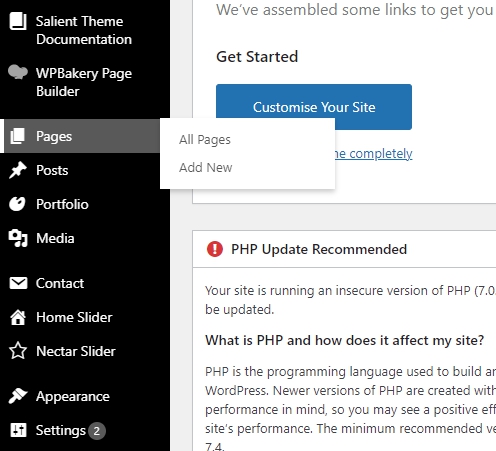
To edit a page click ‘Pages’ or sub-menu ‘All Pages’ to see a list of existing pages. Click ‘Add New’ to create a new page.
Post
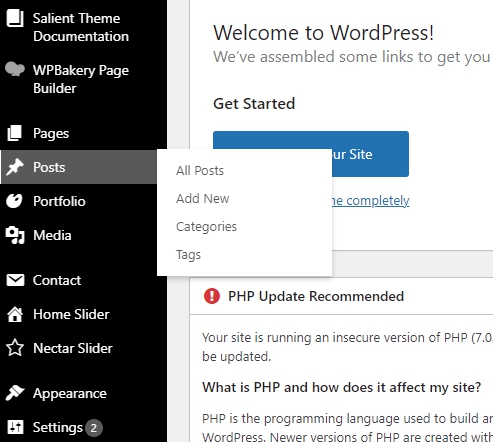
To edit a post click ‘Posts’ or sub-menu ‘All Posts’ to see a list of existing posts. Click ‘Add New’ to create a new post.
Portfolio
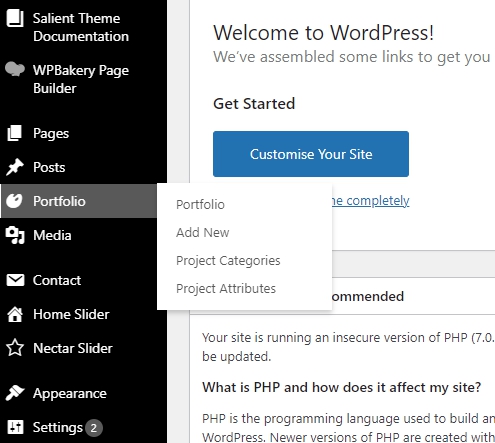
To edit a portfolio click ‘Portfolio’ or sub-menu ‘Portfolio’ to see a list of existing portfolios. Click ‘Add New’ to create a new portfolio.
The following applies to all pages, posts and portfolios.
To edit an existing page, hover over the Title in the list to see editing links. Click ‘Edit’ to modify the specified page.
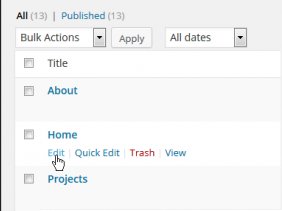
Quick Editing Links
The Editing link options will appear below a page title when you hover over the title. You can also Trash/Delete or Clone/Duplicate an item using these options.

Quick Edit lets you modify the page details such as Title, Slug, Date, Author, Password, Privacy, Categories and Status. Click ‘Update’ to save any changes.

Publish a Page / Post / Portfolio
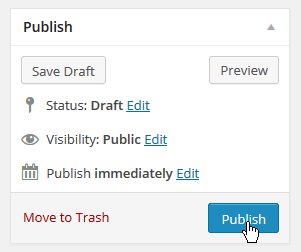
After you have completed your editing, save your changes under ‘Publish’ in the top-right. ‘Save Draft’ will save your progress without making it visible on the front-end so you can come back and finish later. Click ‘Publish’ to make your edits live.