WooCommerce Advanced Bulk Editor
Find full documentation of the plugin here: https://wpmelon.com/woocommerce-advanced-bulk-edit-wcabe-getting-started/
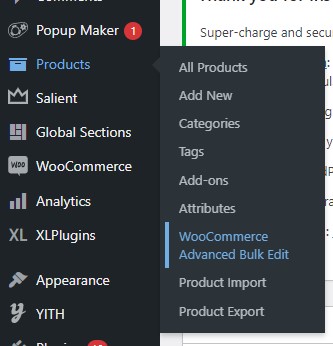
To access the Bulk Editor, go to either Products – WooCommerce Advanced Bulk Editor or if you are in the WooCommerce menu you will find it under Extensions.
Filters
The bulk editor consists of two main areas, the product filters and the product display table below.
The filter section will come with a few basic filter options such as Regular Price and Title. The rest of the filters are populated by attributes set up on your website. You can customise which filters are shown in the plugin settings menu found at the bottom of the page. Within the Search Fields tab you will find all the filters which you can turn on and off.
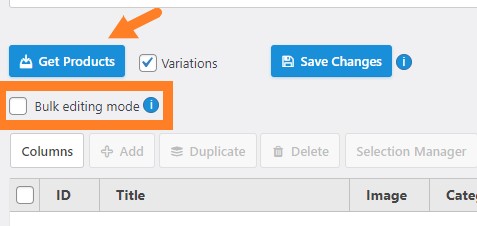
To populate the display table, enter a value into a filter then click on the button Get Products located between the two sections. If you click this button without any filters applied you will get a list of all products on the website.
Editing Display Table
The “Columns” button at the top of the table will allow you to turn on/off which columns are displayed.
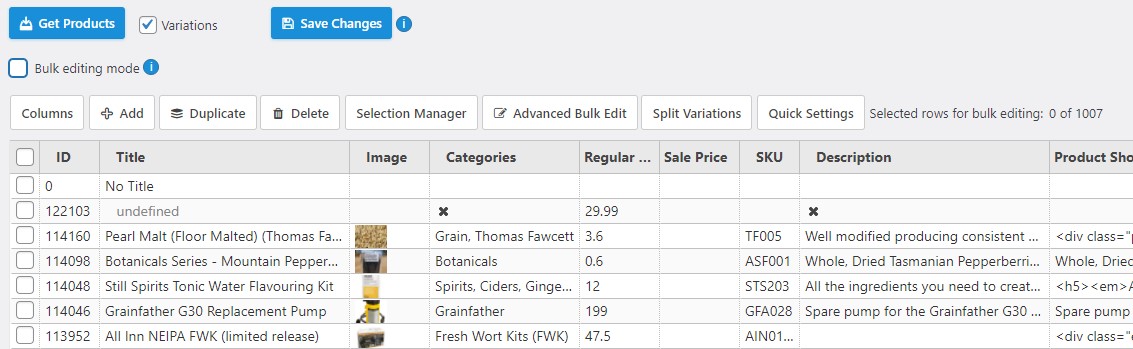
Once you have filtered the products you can edit each product by clicking on a cell in the table, editing the contents then click Save Changes to implement any changes to the affected products.
To edit more than one product at a time you have a few options. If you want to duplicate or delete multiple products you must first tick each row you want to affect, then use the buttons along the top of the table. If you want to change the value of a column for multiple products, for example, you want to add a sale price, you would need to use “Bulk editing mode“. This will enable you to make changes to all selected products at once when you make a change to any cell. This can also be useful if you want to make changes to variable products. By ticking Variations before getting your product list, the variations of each product will show under the parent product. Hover over the parent product to reveal select and unselect buttons for variations.
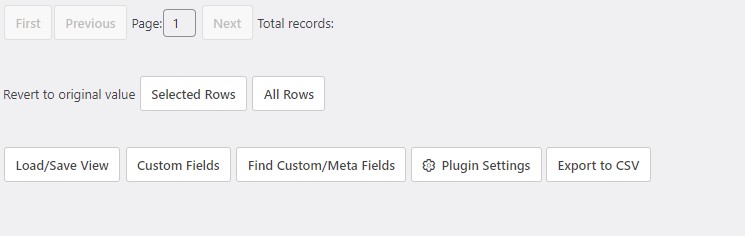
Lastly, you will also see buttons at the bottom of the page for adding custom fields to the filter, a handy tool that will revert your selected rows back to their original values before you have saved the changes and an export table option.