
Remove URLs From Google Search Results
Remove Indexed Content
If you need to remove content from Google’s search results there is a fairly simple process you can follow. The process involves 3 steps:
- Find the search result using site:yourdomain.com.au
- Remove search result from Google Search Console
- Tag content meta data with ‘noindex’ to stop future bot crawling
How to Check Indexed Pages in Google
Before removing any pages from Google search results, you need to know which pages on your site have been indexed. To check these pages;
- Go to google.com
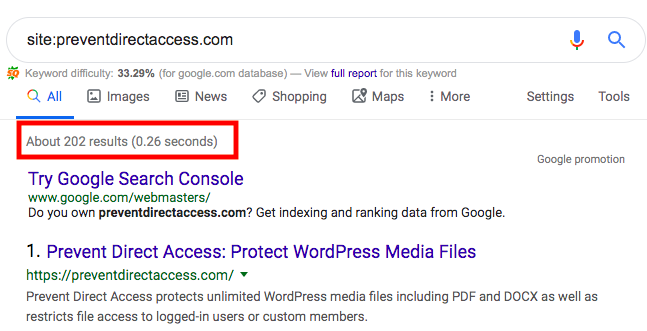
- Type the Google search query, “site:yourdomain.com.au”. You can also be more specific by adding to the url. (E.g /user, /author, /category.)
- Get the number of the total indexed pages displayed at the top of the results
Remove URL In Google Search Console
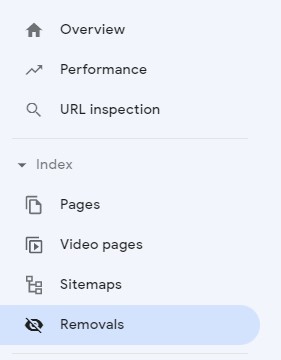
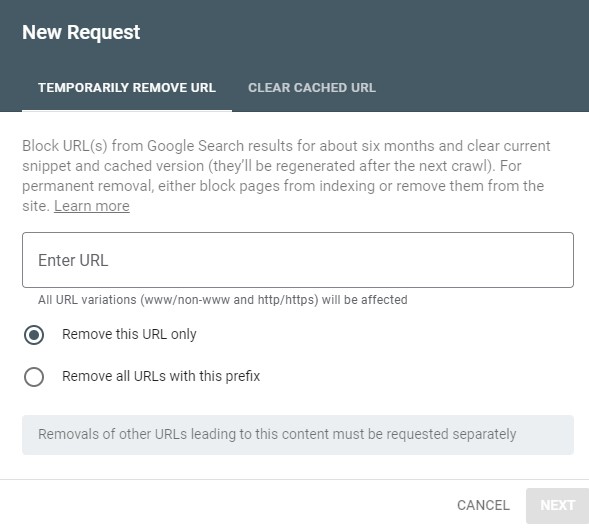
Now you have the URL’s you would like to remove from google search results, go to Google Search Console. After selecting the relevant property, go to the Index menu drop down and select “Removals”. Click on the “New Request” button, then enter the URL in the given field. This will remove the URL from indexing on Google for 6 months before it is recrawled by bots.
Update URL to Noindex
Once the URL has been removed from Google Search Console you will have to add the noindex tag to the page to stop future crawling from bots. Using Yoast SEO you can stop Google from indexing individual pages and products or you can stop crawling for entire content types (e.g. Pages, Portfolios, Posts, Products) or Taxonimies (Categories, Tags, Products Attributes).
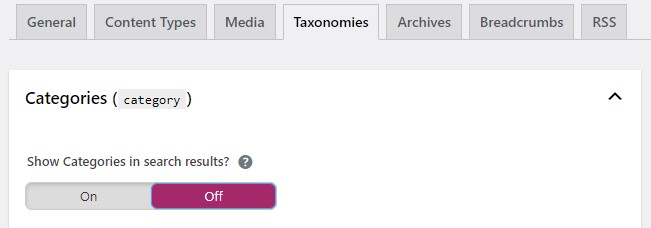
You will find these settings by navigatiing to the admin menu –> Yoast SEO –> Search Appearance. If you wanted to hide all categories for example, you can select the Content Types tab, go to the Categories section and set “Show Categories in search results?” to Off.
For individual pages you would edit the page, go to the Yoast SEO section, click on the Advanced tab and select No for “Allow search engines to show this Page in search results?”. This will add the noindex tag to the page’s meta data.
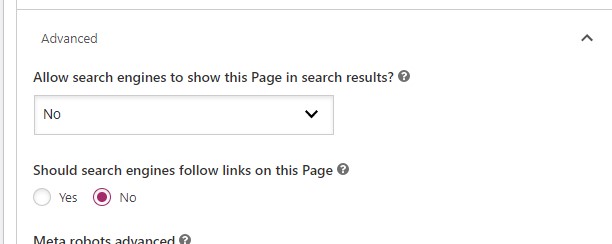
If you would like to apply these settings to most URL’s of the same type but not all, you can combine the two methods. As an example, if you wanted to hide all pages from search results except the Home page, you would first set all Pages to not be indexed in the Yoast SEO Content Types tab. Then go into the Home page and set the “ to “Yes”. This will then only index the Home page and hide all others to Google’s bots.