
Product Warning & Disclaimers
Warning Under Product Title
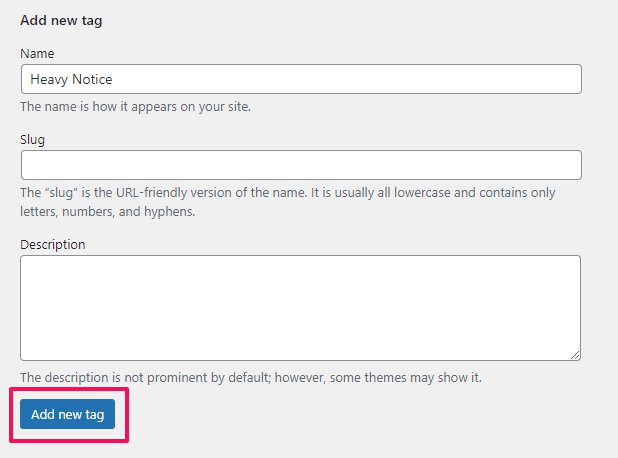
Before creating a new warning go to Products > Tags.
Add a name then click ‘Add New Tag’. Make sure to name the Tag something in relation to the Warning.
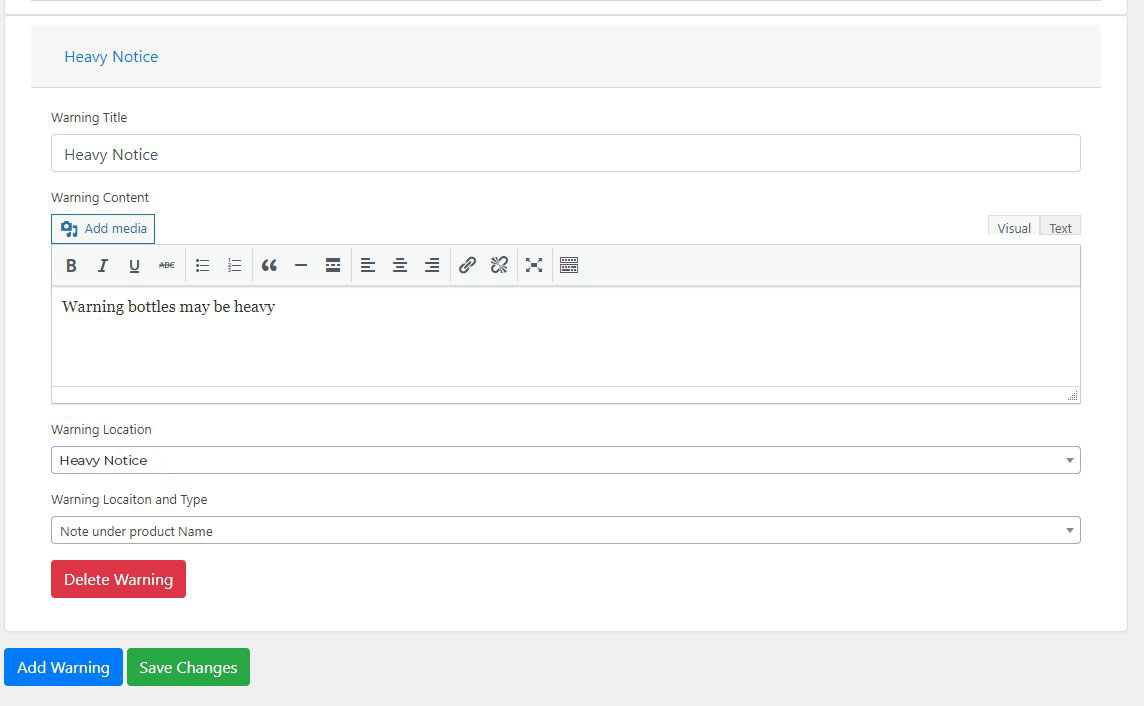
Then go to Settings > Product Warning & Disclaimer and click on ‘Add Warning’
Add a warning title along with the content you wish to display.
Click on the Warning Location dropdown and select your newly created Tag.
In the Warning Location Type select ‘Note under Product Name’.
Note: If you want your warning to display as a Pop up, select ‘Informative Popup’ from the Warning Location Type dropdown.
Once finished click Save Changes.
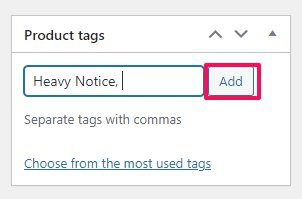
To add the warning to the product go to Products and click Edit on the allocated product.
On the right and side under Tags, add your new tag by typing in the name. Click Add.
Make sure to click Update to save changes.
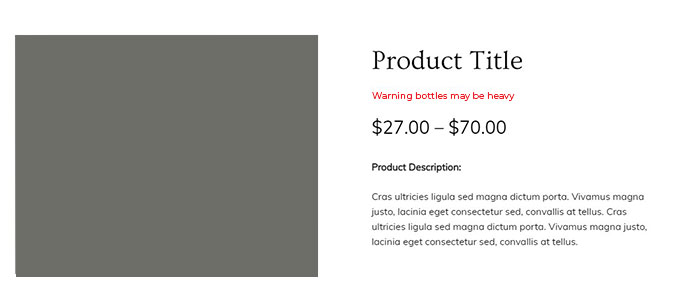
The warning will display as below:
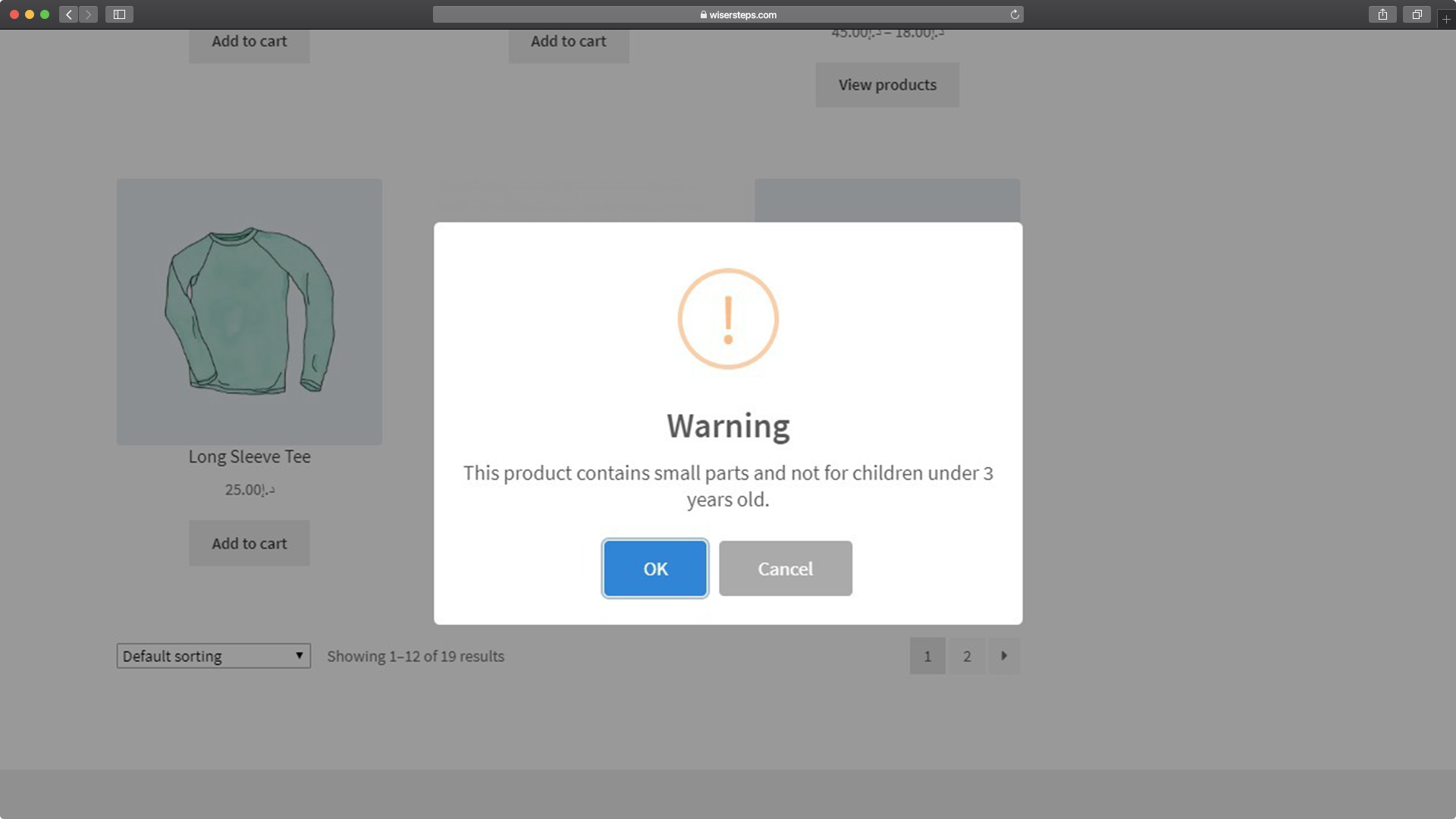
Popup Warning
To display your warning as a pop-up follow the above instructions but select ‘Informative Popup’ from the Warning Location Type
Other Warning/Disclaimer Options
- Warning Type
- Text
- Note under product description
- Note under product Name
- Popup
- Warning popup
- Error popup
- Informative popup
- Success popup
- Custom popup (No Icons)
- Text