Reviews for WooCommerce
Install then activate the Customer Reviews for WooCommerce plugin by CusRev. Customer Reviews allows us to display reviews on products made by customers directly. This plugin will allow us to set up an automatic email reminder to prompt customers who purchased a product to review it and give feedback on the product and service provided.
Customer Review Settings
The first step in setting up auto-reminders is to navigate the admin menu and select reviews/settings. Here we can customise our review reminder to email the customer exactly when and how we want.
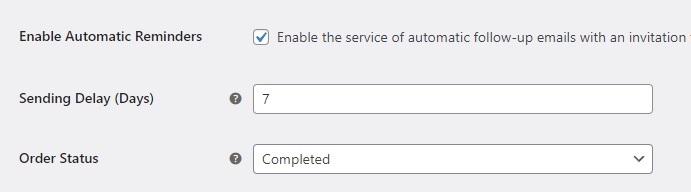
Start by ticking the first checkbox to enable automatic reminders. The next two options work together, set the number of days you would like the auto reminders to wait before prompting the customer for a review. Then you can start this timer when the order has been placed and has been processed or when the order has been completed.
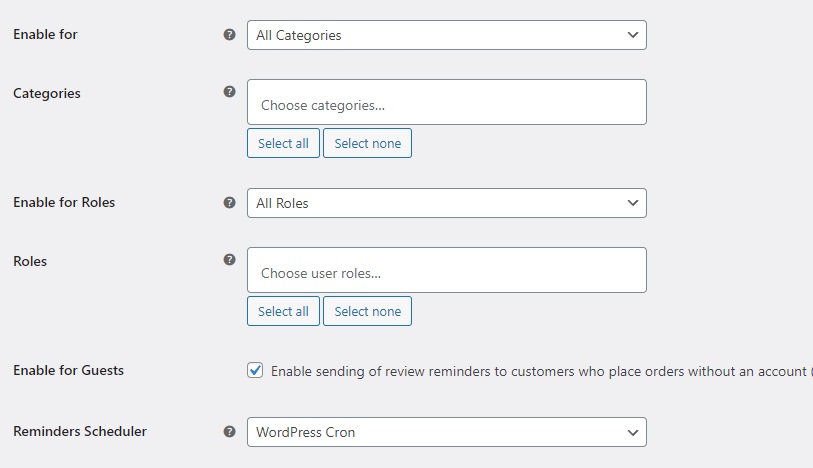
Next you can choose to limit the review to be only sent to certain product purchases using the categories the products are assigned to. This can also be done below to include certain types of customers by restricting the review to be sent to a certain role, e.g. Send to the role of Customer and not Wholesaler. If you don’t require customers to create an account to purchase products, then they will have a role of guest and you will need to tick “Enable for Guests” to include them in the auto-review process. Use the default WordPress Cron, unless it has issues, then use the CR Cron (Customer Reviews). This will require the premium version of this plugin.
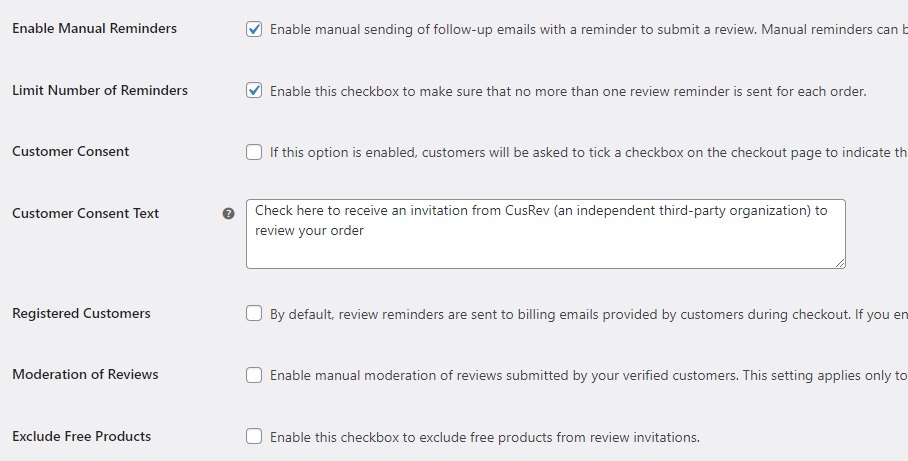
Following on, you can enable manual reminders which will give you the option to send out review reminders from the ‘Orders’ page of WooCommerce. Enable the next option which limits the number of reminders to one, so the customers don’t get spammed with requests they don’t need.
The next two options will allow customers to consent to a review reminder on checkout. If you tick this box, you will need a short message to describe what checking the box will do for the customer. ‘Registered Customers’ setting will be used if you want to limit the reminders to customers with accounts and saved billing addresses, this setting is not recommended if you allow guest accounts to purchase products.
Moderation option is limited to email responses, so it is unnecessary if you receive reviews in other forms. You can also exclude free products from the review process by ticking the next option.
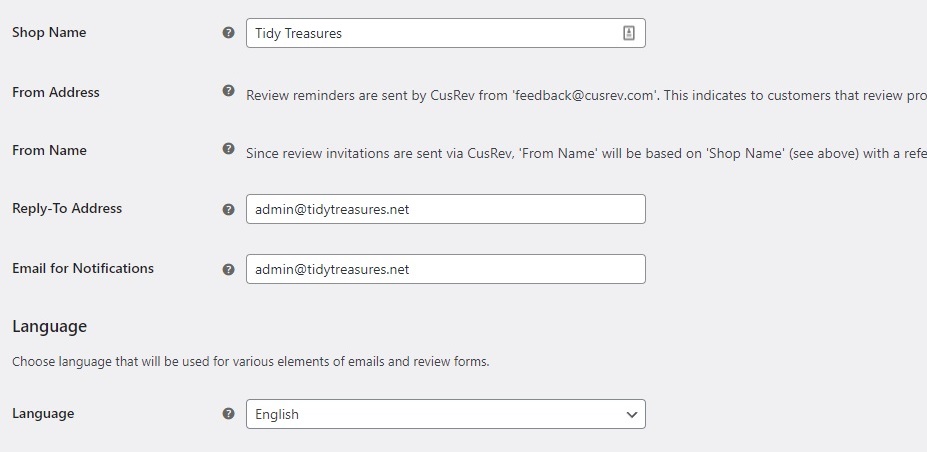
Include the shop name so customers know where the review is coming from as the next sections will not be customisable unless you have the premium version of this plugin. The address & form name will be labelled CusRev by default.
In the next section, add the email address you wish to receive the reviews once they have been submitted and for notifications of completed reviews. Language will be English unless otherwise changed.
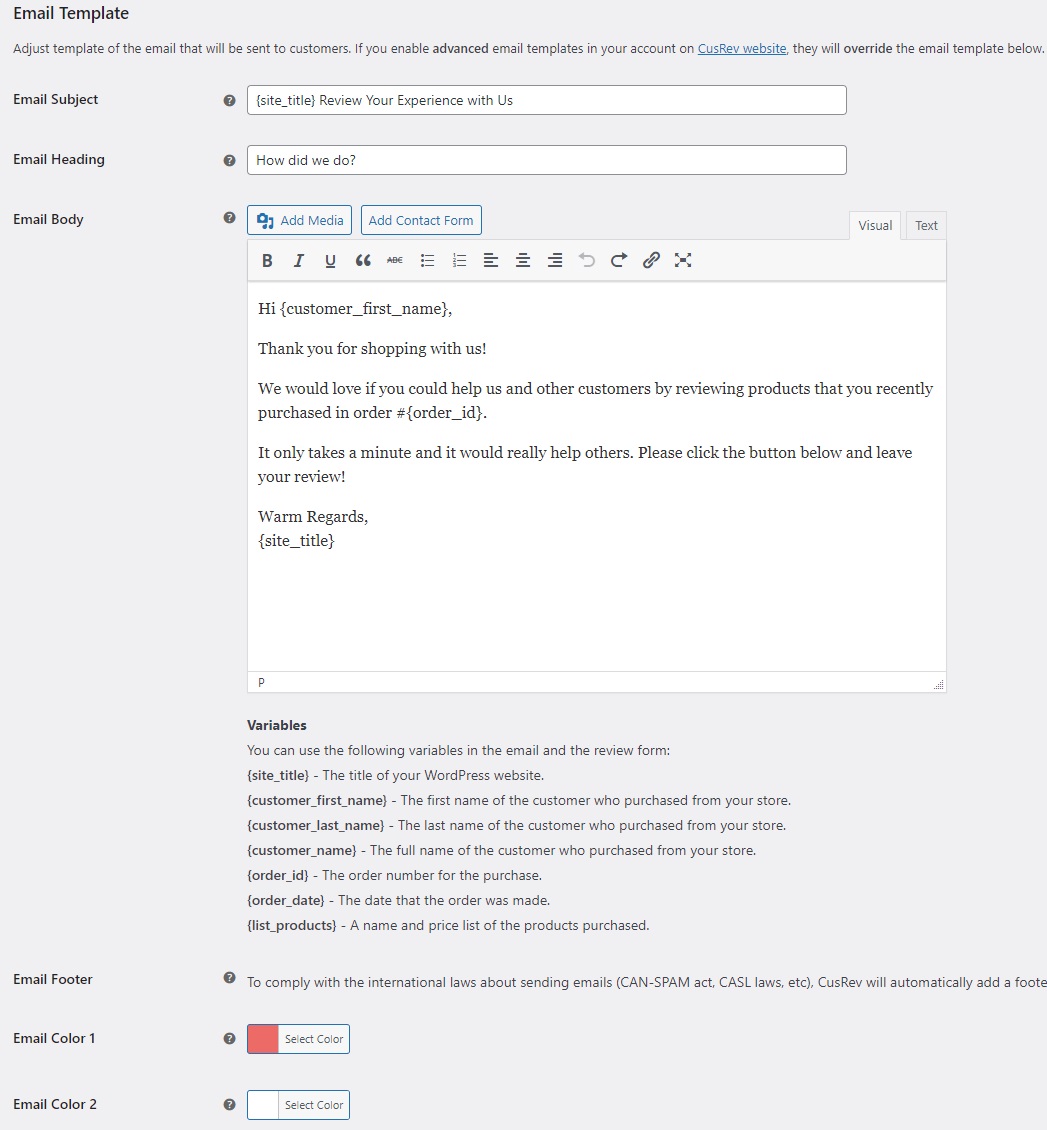
Email Template
The next step is to fill in the email which customers will receive. Make it simple and to the point and remember to include the short code where possible. Underneath the ‘Email Body’ there is a shortlist of common short code variables you can use in the email. The footer will be automatic. ‘Email Colour 1’ will change the colour of the heading background & button. ‘Email Colour 2’ will control the background of the email body.
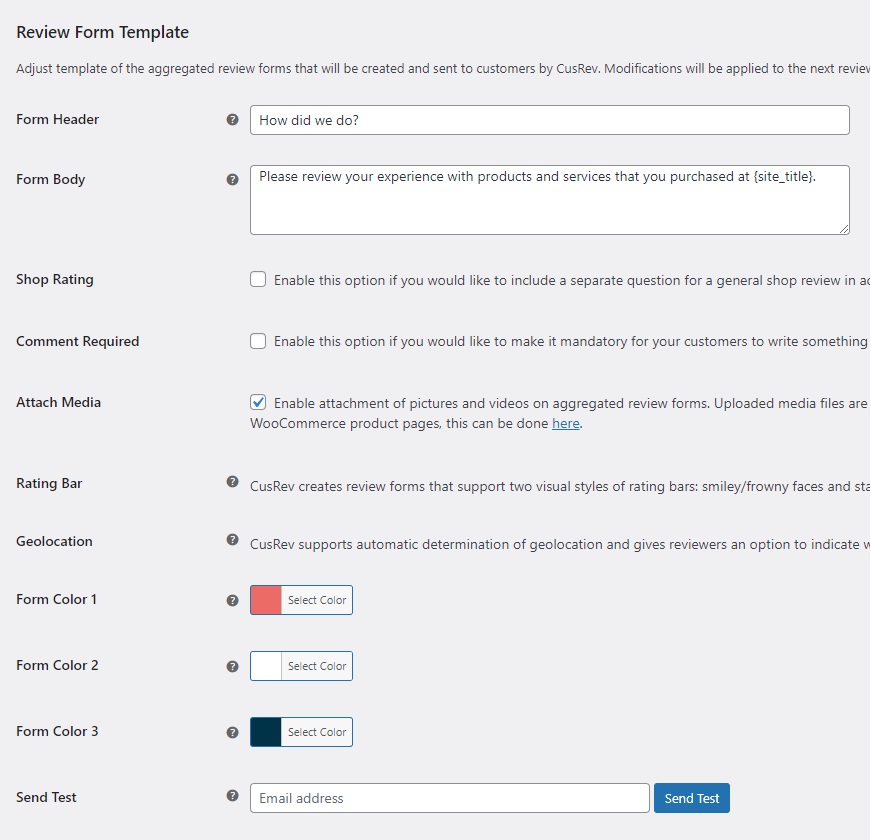
Review Form Template
The form body should be short and to the point, and the form header can be copied from what you have above to make it easy. Shop rating will enable an extra form question. Enable ‘Comment Required’ if you need customers to include a message with their review. ‘Attach Media’ will allow customers to include images of their newly purchases products.
Rating Bar scale as default will be on a scale out of 5 from frowny face to smiley face. This can be changed to a star rating if you purchase the premium plugin. Geolocation can be activated if you have the premium version as well.
Lastly, select the colours for the form, ‘Colour 1’ will control the header, ‘Colour 2’ will be the background for the body & ‘Colour 3’ will be the accent colour such as the button colour.
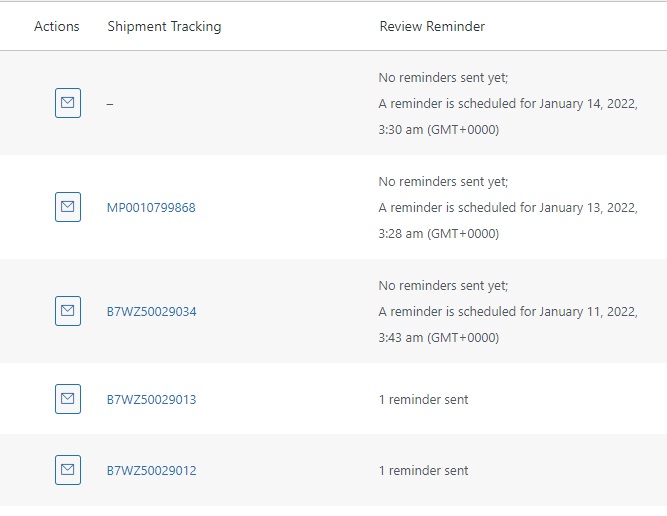
Now the settings have been setup, you can check on the progress of the review reminders in the ‘Orders’ section of the ‘WooCommerce’ admin menu tab. The review reminder column will appear on the right side of the orders.