Variable Products
Variable products are a product type in WooCommerce that lets you offer a set of variations on a product, with control over prices, stock, image and more for each variation. They can be used for a product like a shirt, where you can offer a large, medium and small and in different colors.
Adding a Variable Product
Step 1. Set the Product Type
To add a variable product, create a new product or edit an existing one.
- Go to Products.
- Select the Add Product button or Edit an existing product.
- Scroll down to the Product Data display.
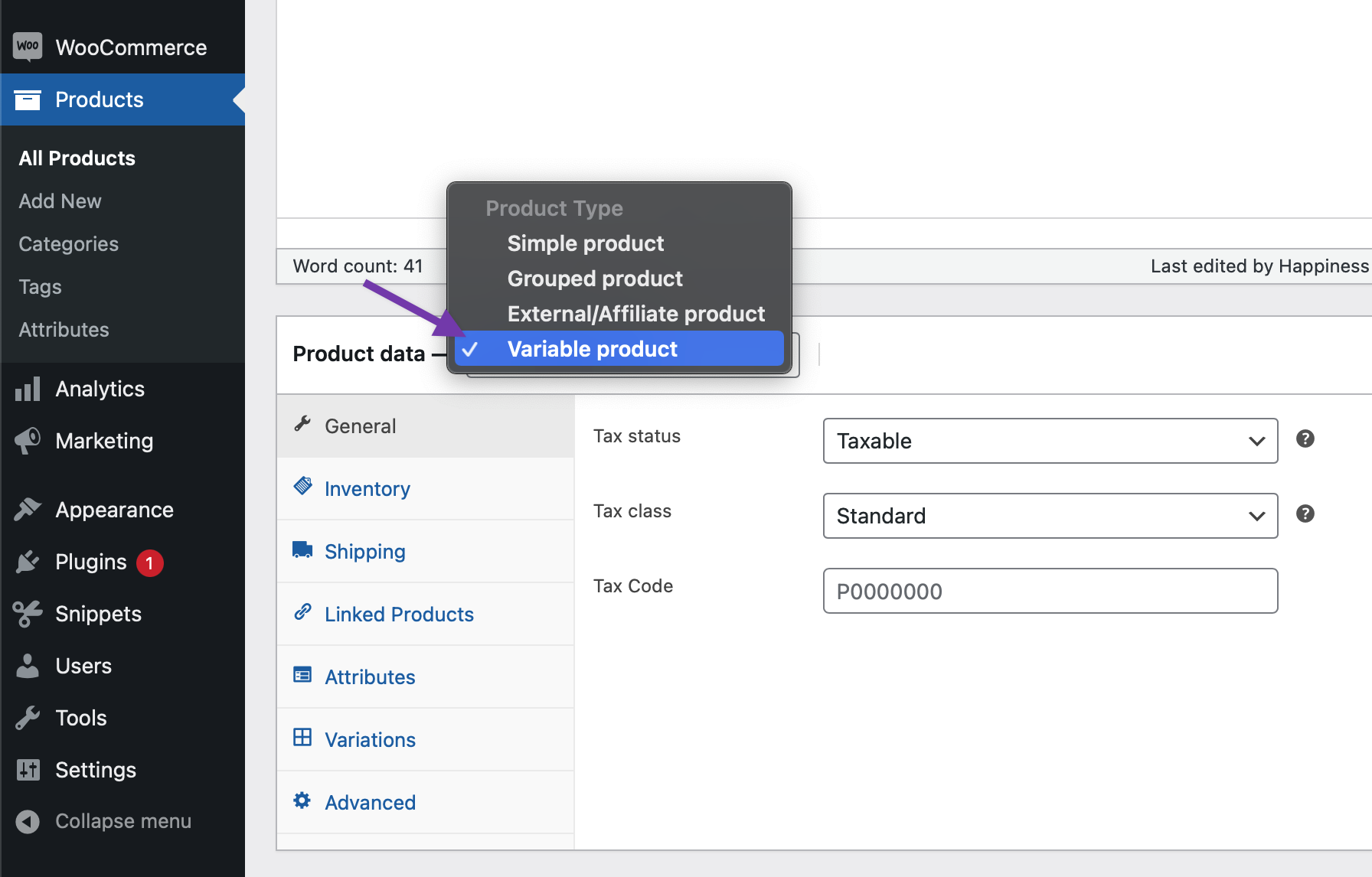
- Select Variable product from the Product Data dropdown.
Step 2. Add Attributes to Use for Variations
In the Attributes section, add attributes before creating variations.
Set an Attribute
Once you created the required attributes:
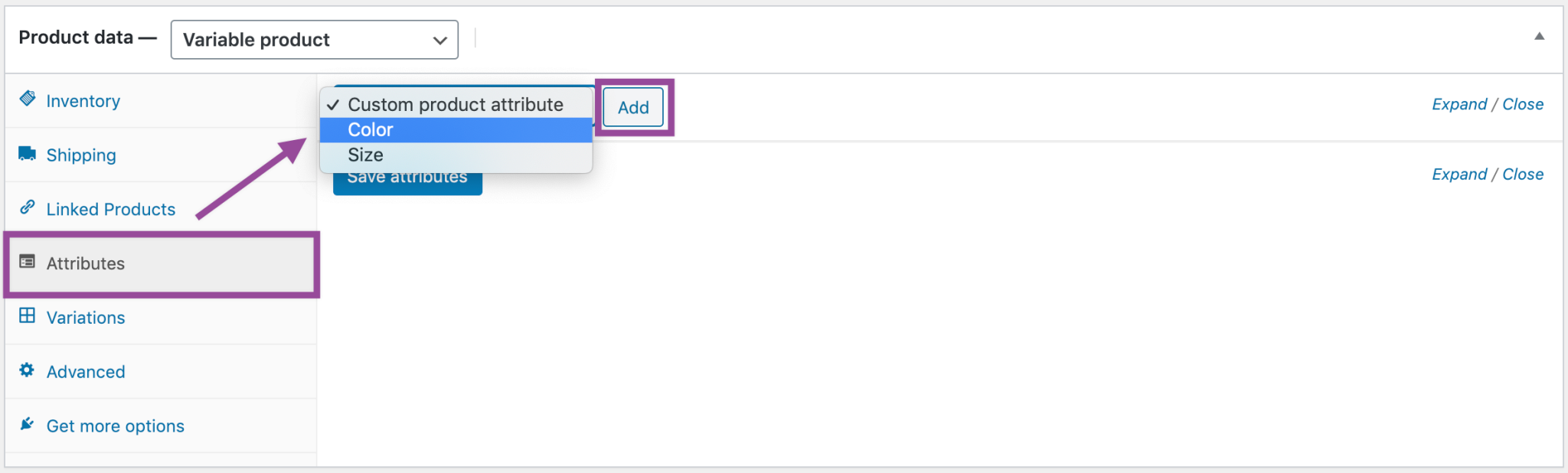
- Select one from the dropdown and click Add.
- Choose Select all to add all attributes to the variable product (if applicable).
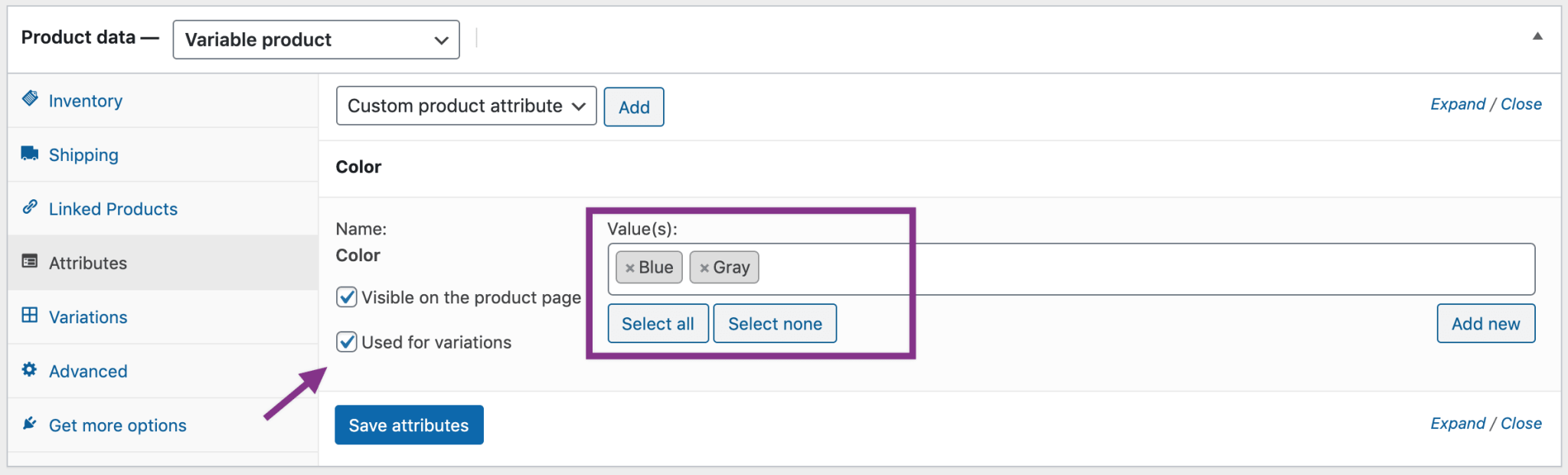
- Enable the Used for variations checkbox to tell WooCommerce it’s for your variations.
- Click Save attributes.
Add the attribute values
To add a new attribute specific to this product:
- Select Custom product attribute and click Add.
- Name the attribute (e.g., Size).
- Set values separated by a vertical pipe,
|(e.g., Small | Medium | Large). - Enable the Used for variations checkbox.
- Click Save attributes.
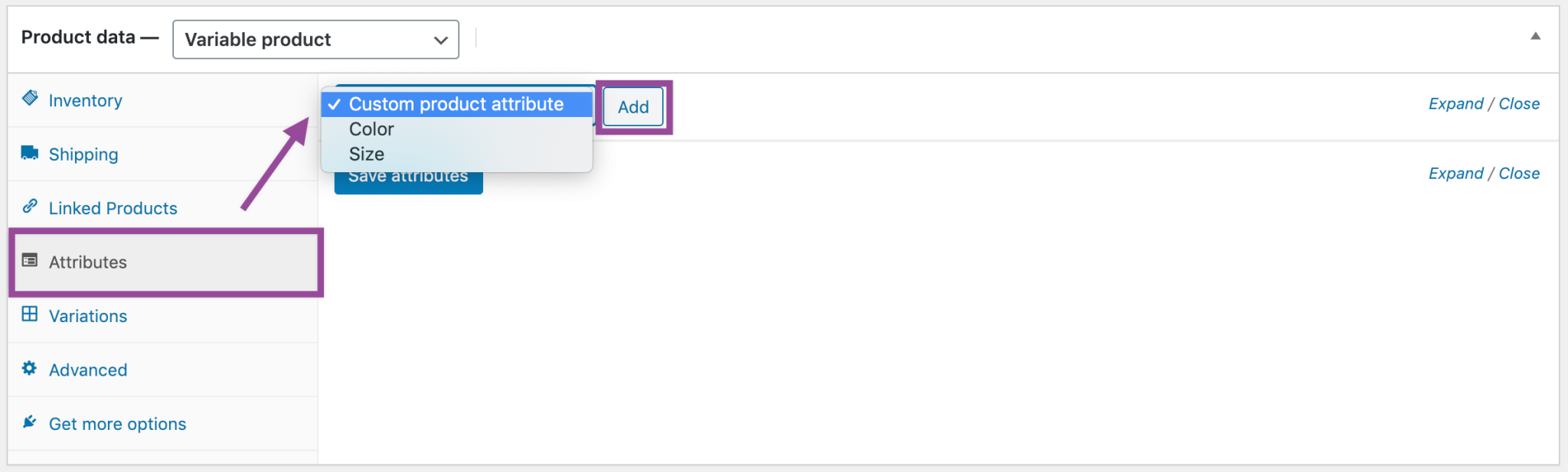
Add the attribute values
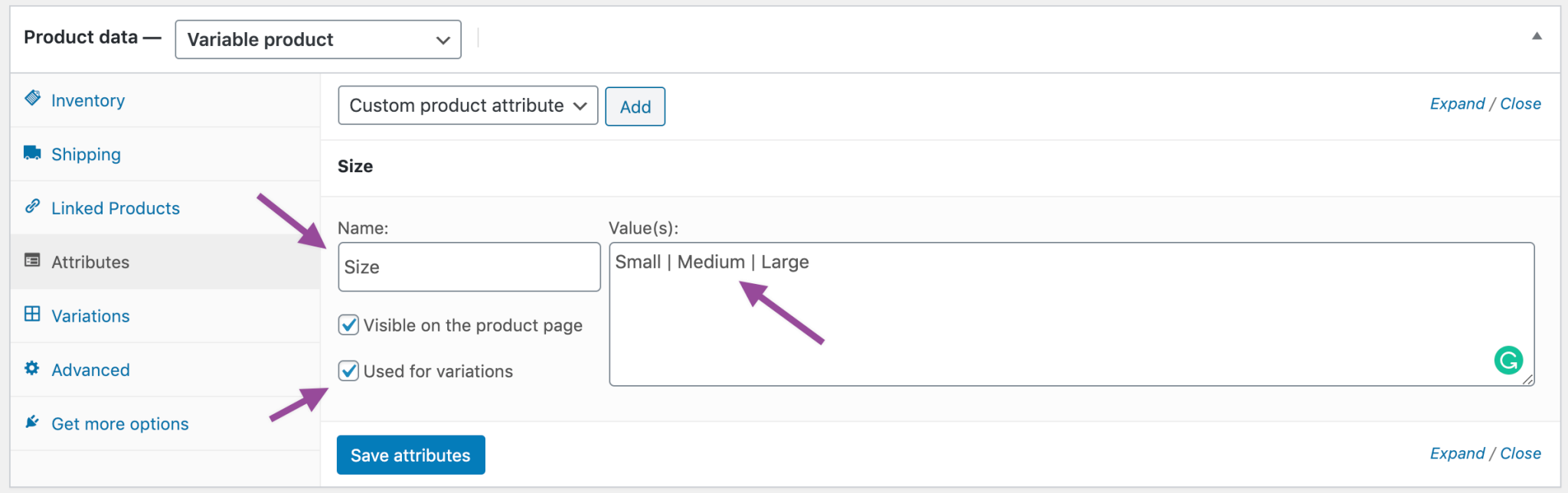
Step 3. Add Variations
To add a variation, go to the Variations section in the Product Data meta box.
Manually Add a Variation
1. Select Add variation from the dropdown menu, and select Go.
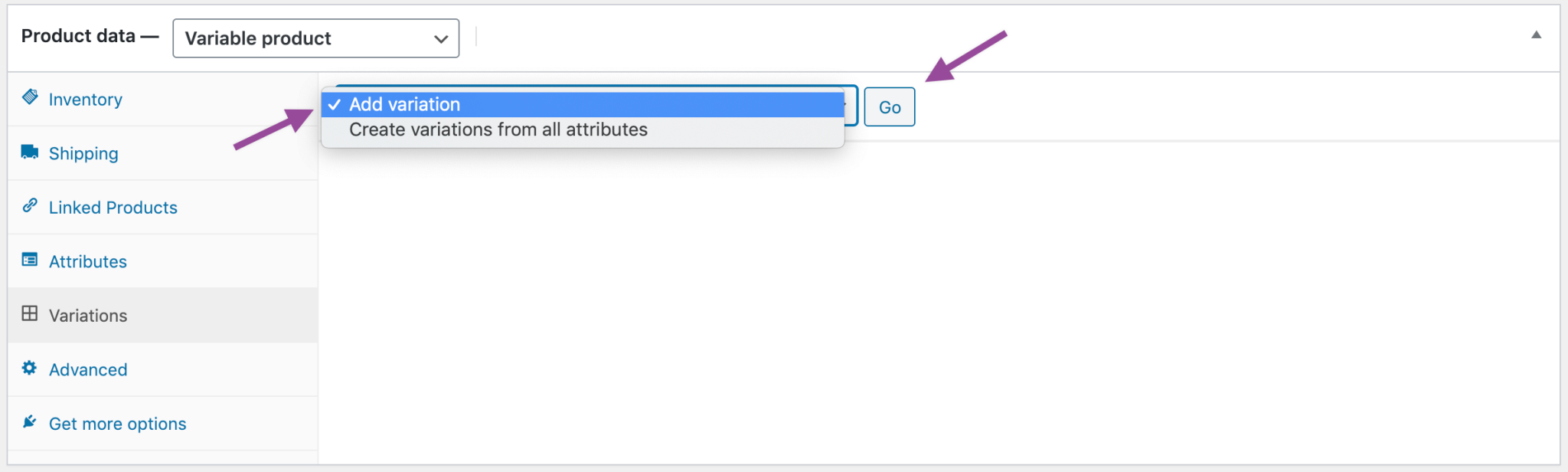
2. Select attributes for your variation. To change additional data, click the triangle icon to expand the variation.
3. Edit any available data. The only required field is Regular Price.
4. Click Save changes.
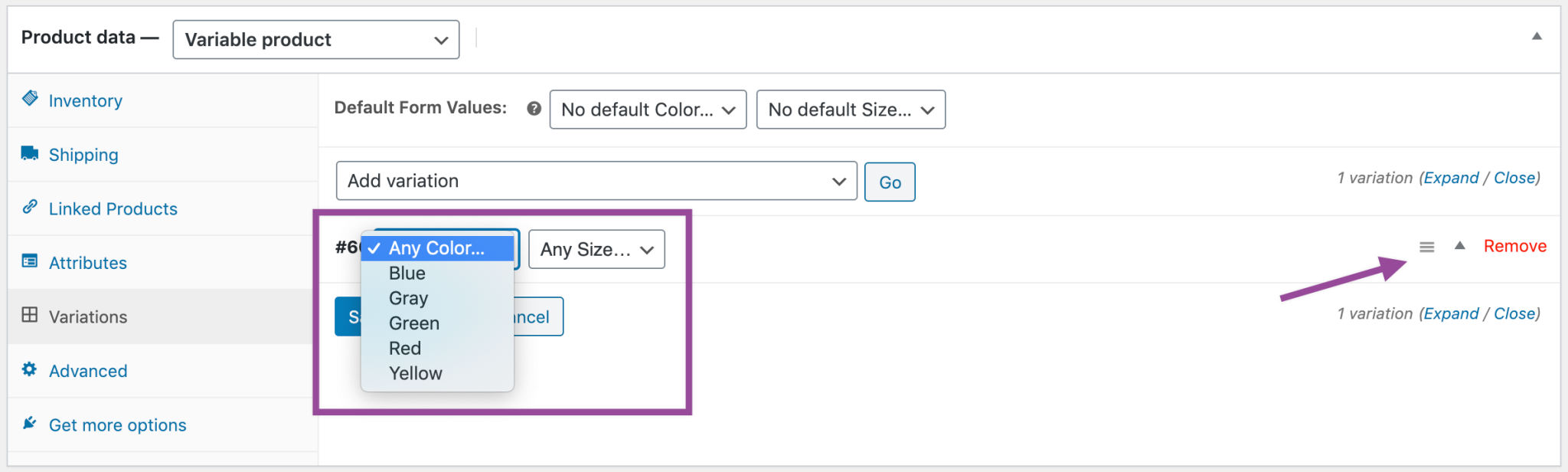
Creating All Possible Variations
Select Create variations from all attributes to have WooCommerce create every possible combination of variations and click Go:
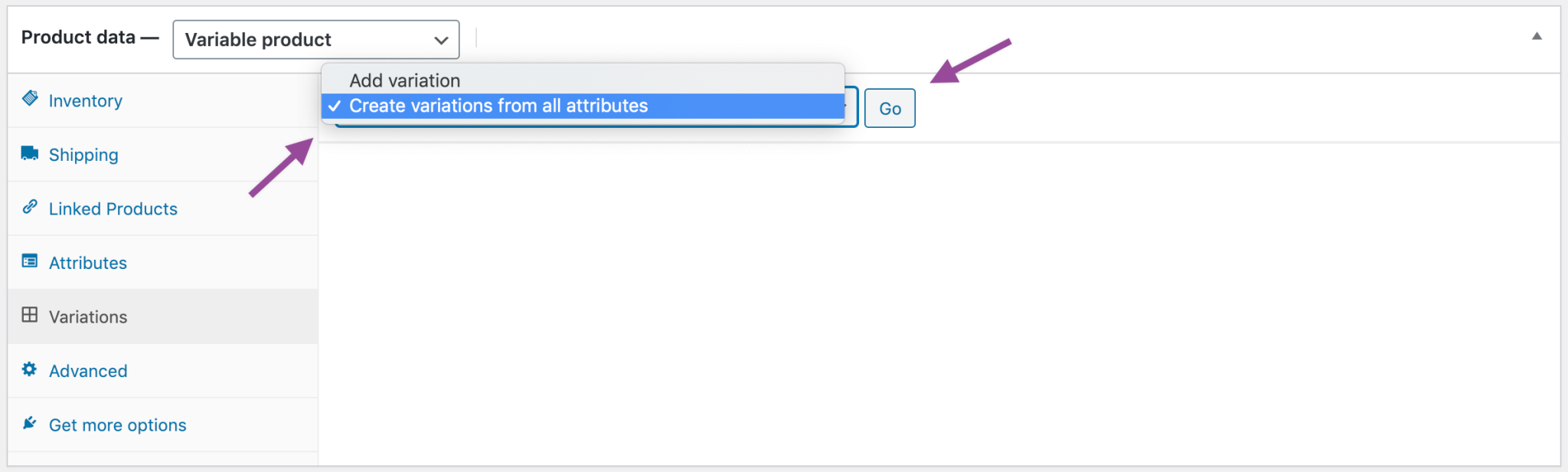
It will create a new variation for each and every possible combination of variation attributes (max 50 per run). If you have more possible combinations you can run it again.
If you have two attributes – color (with values blue and green) and size (with values large and small) it creates the following variations:
- Large Blue
- Large Green
- Small Blue
- Small Green
Adding Variation Data
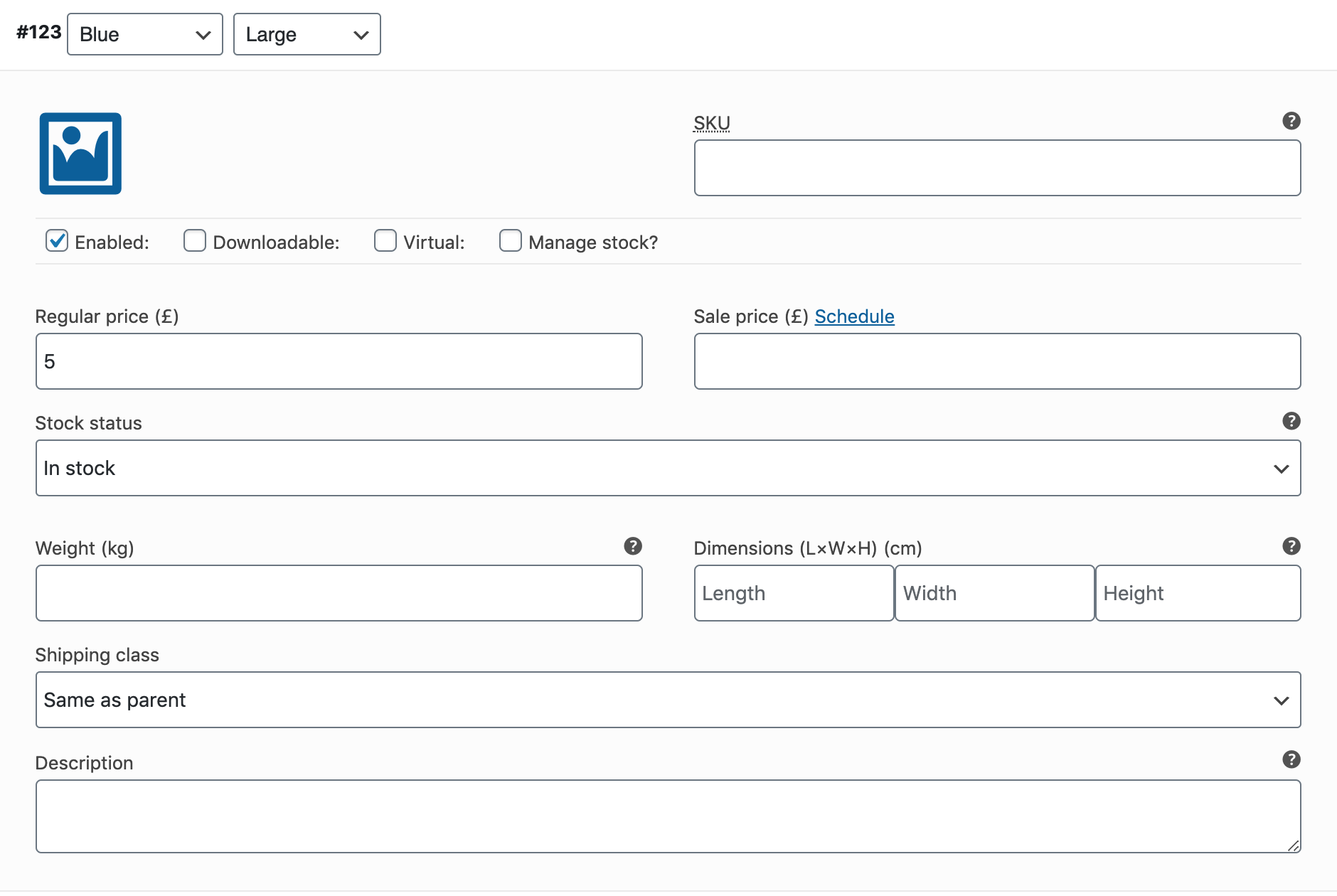
Each variation can have the following properties.
General
- Enabled – Enable or disable the variation.
- Downloadable – If this a downloadable variation.
- Virtual – If this product isn’t physical or shipped, shipping settings are removed.
- Regular Price (required) – Set the price for this variation.
- Sale Price (optional) – Set a price for this variation when on sale.
- Tax status – Taxable, shipping only, none.
- Tax class – Tax class for this variation. Useful if you are offering variations spanning different tax bands.
- Stock quantity – Shows if Manage stock? is selected. Allows to set the current stock level for the variation.
- Allow backorders? – Shows if Manage stock? is selected. Allows to set if backorders are allowed for the variation; if enabled, stock can go below zero.
- Low stock threshold – Shows if Manage stock? is selected. When the stock for the variation reaches this level you will get a notification email. If not set, the product-wide threshold will be used (see Inventory Management below).
- Downloadable Files – Shows if Downloadable is selected. Add file(s) for customers to download.
- Download Limit – Shows if Downloadable is selected. Set how many times a customer can download the file(s). Leave blank for unlimited.
- Download Expiry – Shows if Downloadable is selected. Set the number of days before a download expires after purchase.
Inventory Management
Inventory for variable products can be managed on product and variation level.
Сhoose how to manage stock by toggling Enable stock management at product level on the Inventory tab:
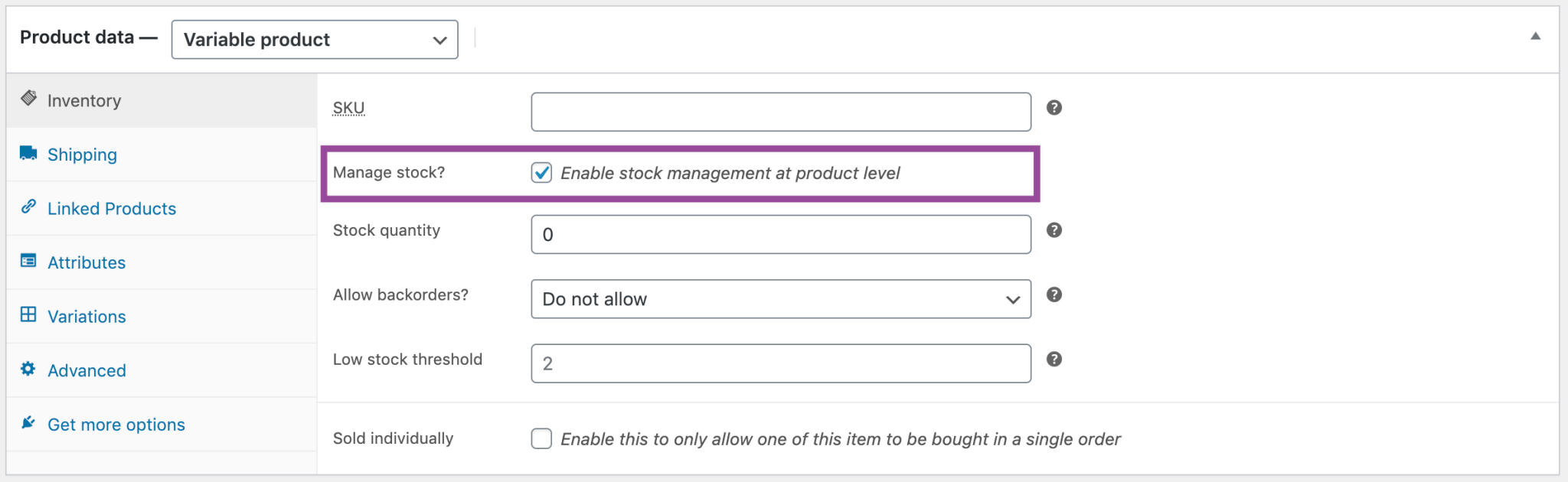
The following settings are available if you choose to manage stock on a product level:
- SKU – If you use SKUs, set the SKU or leave blank to use the product’s SKU.
- Manage Stock? – Tick the box to manage stock at the variation level.
- Stock Quantity – Shows if Manage Stock is selected. Input the quantity. Stock for the specific variation, or left blank to use the product’s stock settings.
- Allow Backorders – Choose how to handle backorders.
- Low stock threshold – When the stock for the variation reaches this level you will get a notification email.
- Sold Individually? – Allow only one to be sold in one order. (This setting is used for the product itself. You cannot set a specific variation to only be sold once per order)
Shipping
- Weight – Weight for the variation, or left blank to use the product’s weight.
- Dimensions – Height, width and length for the variation, or left blank to use the product’s dimensions.
- Shipping class – Shipping class can affect shipping. Set this if it differs from the product.
Linked Products
- Upsells
- Cross-sells
- Grouped
If the SKU, weight, dimensions, and stock fields are not set, then it inherits values assigned to the variable product. Price fields must be set per variation.
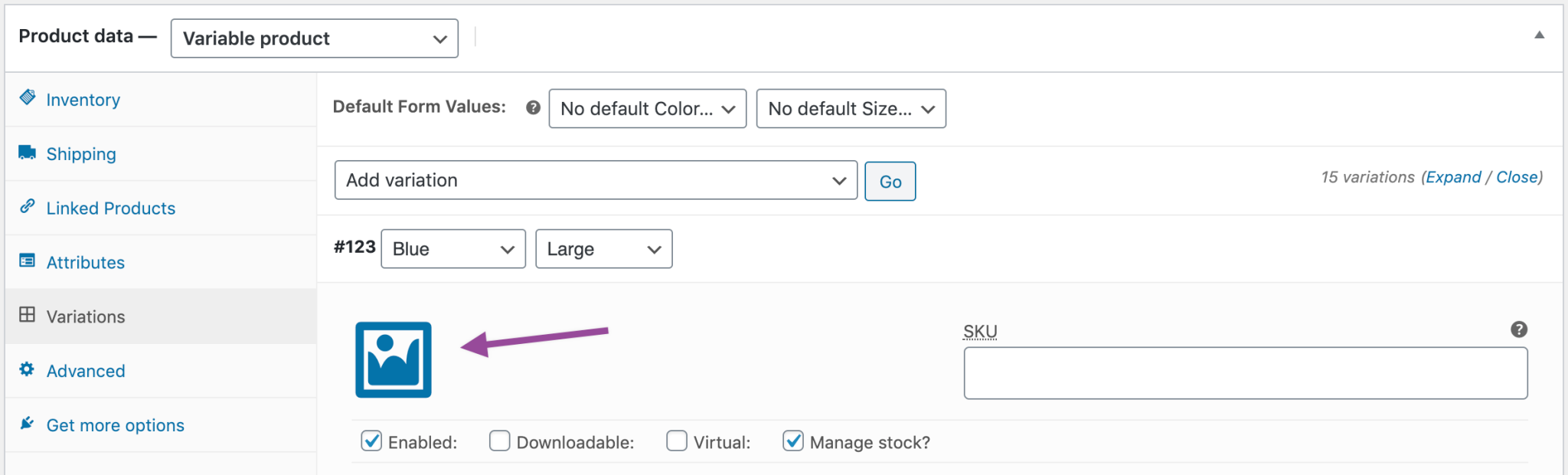
Add an Image to the Variation
- Expand the variation.
- Click the blue image placeholder (screenshot).
- Select the image you wish to use.
- Save.
What Customers See
On the frontend, when viewing a variable product, the user is presented with dropdown boxes to select variation options. Selecting options will reveal information about the variation, including available stock and price.
If the user tries to click the greyed out add to cart button before choosing an attribute, a message will appear asking them to select some attributes.
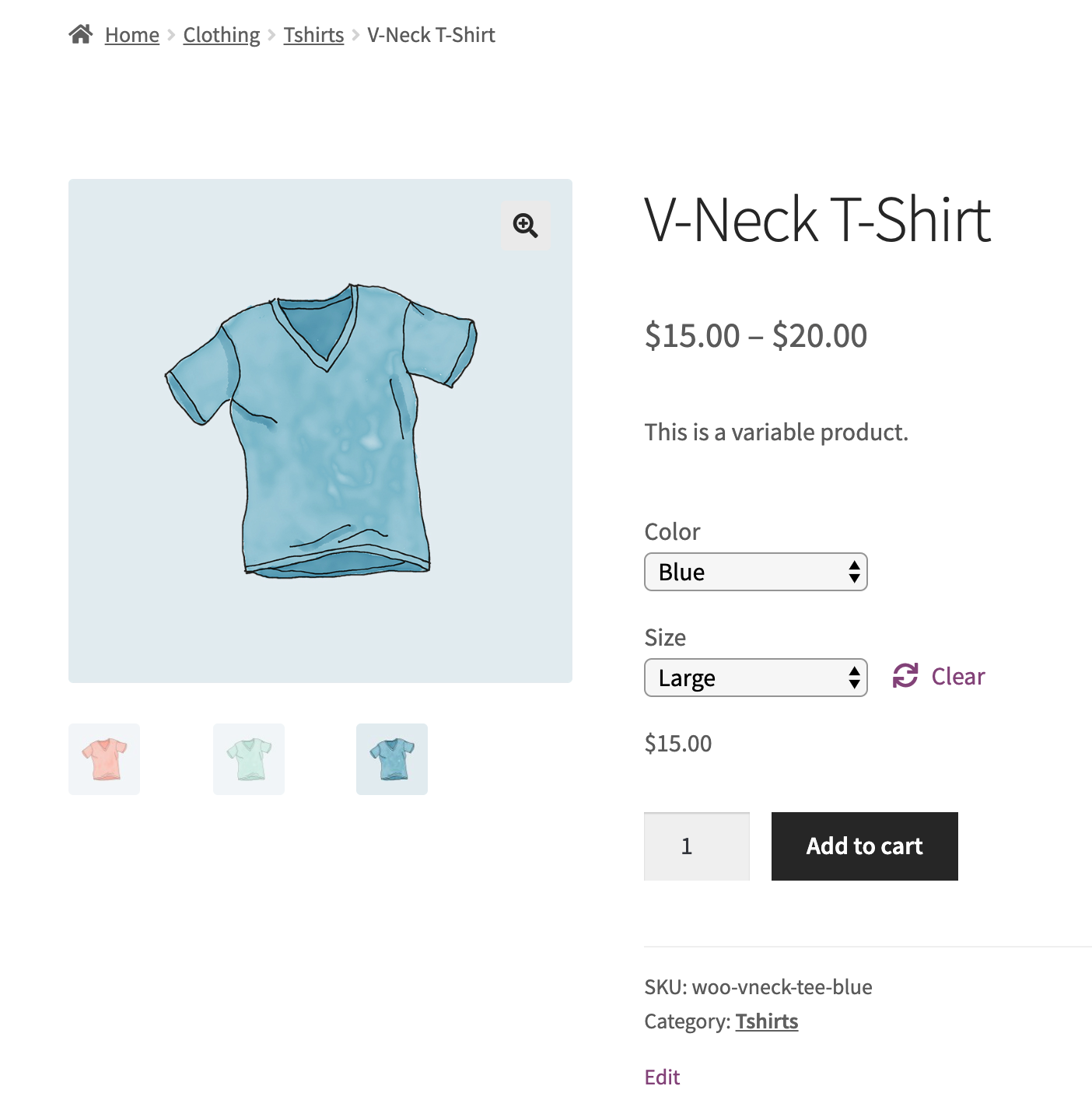
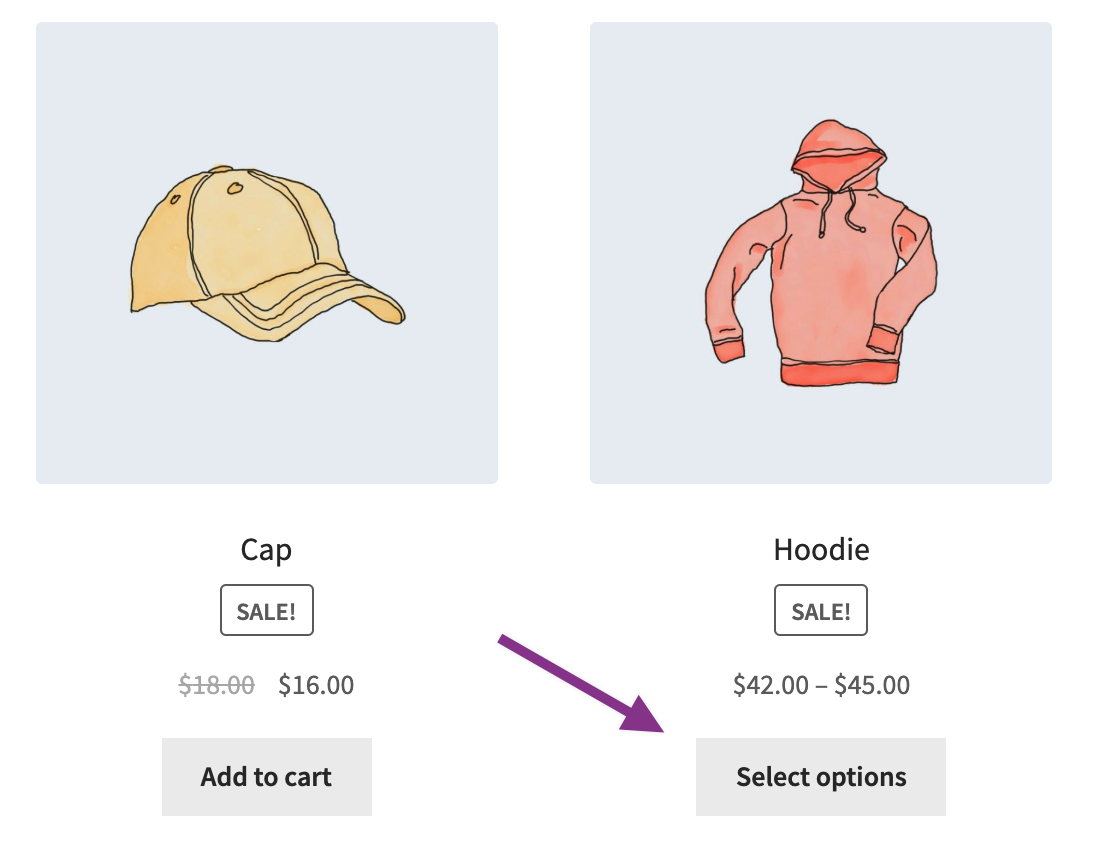
In the product archive page, Add to Cart does not display because a variation must first be chosen before adding to cart on the product page.