
Variable Product Shared Inventory for Woocommerce
Shared Inventory Product Configuration
Once on the product page, set the product type to Variable Product, add the attributes you want to use, create the variations and then navigate to the tab labelled Shared Variation Inventory.
More on Adding a Variable Product: https://support.wynnesps.com.au/knowledgebase/variable-products/
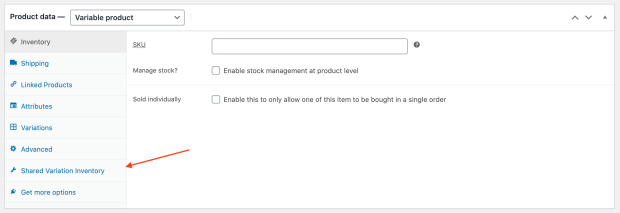
IMPORTANT: In the Inventory Tab, ensure that “Enable stock level management at product level” is DESELECTED. You want to manage stock levels via the Shared Variation Level.
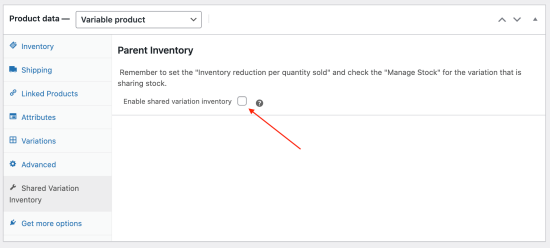
In the tab, check the checkbox labelled enable shared variation inventory. This enables the shared inventory system for the current product.
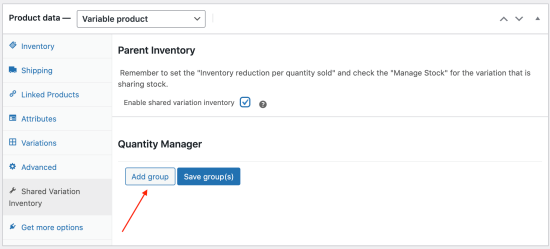
A section labelled quantity manager should appear. In this section, there’s two buttons that let you add and save groups. Click the Add Group button to create a new row in the table.
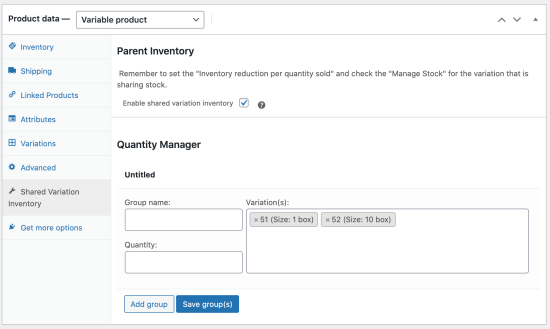
In the group you’ll see three fields.
- Group Name: This field is used to identify the group.
- Variation(s): This field contains all the variation IDs and attributes of the variations that you want to share the same inventory quantity.
- Quantity: This field contains the total quantity of the items you want to share stock for. It should represent the total amount of stock that you have.
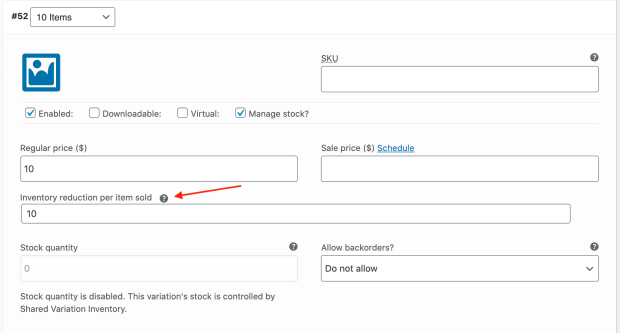
Once you’ve created groups to your liking, the next step is to set up the Stock Reduction Multiplier. This is the amount of stock that will be decreased when 1 of this product is purchased (ie. If the product is 3x the item (such as a 6 pack), put 6 here).
IMPORTANT: Please ensure that the “Manage stock?” option is checked for all included variations. If the option is not checked, products may appear as in-stock even when shared stock quantity reaches 0.
Usage
- Once the plugin is activated and the product is configured with the variation shared inventory, transactions involving the product will now affect the total inventory.
- Whenever a product in the shared inventory group is purchased, the total quantity will be updated as well as the individual quantities for all variations in the same group.
- If multiple products in the same group are added to the cart, quantity validation will be based on the total amount available for the shared inventory group.
- Refunds and cancellation of orders involving products that share inventory will restore stock to the total quantity and update the individual stock totals accordingly as well.
Troubleshooting
In the case that the total stock of a group has reached 0 and some of the variations in the group still appear as in-stock, please check that the corresponding variation has the manage stock option turned on. In these cases, the quantity validation will still function, but this may affect the product’s display in some sections of the store that list the product.
Full documentation: https://docs.woocommerce.com/document/variation-shared-inventory-for-woocommerce/